
Posted on: October 30th 2026
A training video can have accurate captions and still leave viewers without essential information. A chart may go unexplained, a demonstration may rely entirely on visual cues, or the player controls may be inaccessible to someone using a keyboard.
Captions address the audio, but video accessibility extends across the viewing experience. Guidance from the World Wide Web Consortium (W3C) covers complementary components, including captions, descriptions of essential visual information, transcripts, and accessible media players. The combination needed depends on the content, audience needs, and applicable accessibility requirements.
For teams managing specialist video libraries, these gaps can be easy to overlook when caption availability becomes the main accessibility check. Automated captions also need accuracy checks. Assessing both the content and the player helps teams identify barriers that a caption file alone cannot resolve.
1. What Does “Right Here” Mean If You Cannot See the Slide?
Video accessibility starts with a practical question: can viewers understand the essential information if they cannot hear the audio or see the screen?
Consider a recorded university lecture. The instructor points to a chart and says, “As you can see, the trend line drops dramatically right here.”
Accurate captions make those words available to viewers who cannot hear them. But someone who cannot see the chart still needs to know what is falling, by how much, and over which period.
A more informative explanation would be: “The chart shows completion rates falling from 80% in January to 55% in March.” This gives the visual detail meaning through the narration and, when accurately captioned, through text.
W3C guidance on describing visual information recommends conveying the visual details needed to understand the content. For lectures and demonstrations, speakers can often build those details into their explanations.
Start by identifying what viewers need to learn. Then check whether that information is available through accessible alternatives to sound and sight.
| Captions reveal what was said. Descriptions reveal what was shown. |
2. Similar Formats, Different Jobs
A subtitle may translate every spoken word yet leave out the alarm that explains why everyone leaves the room. A transcript may capture the lecture but omit the chart that makes its central argument.
These gaps matter when choosing how to make a video accessible. Here is what each component contributes—and what to check.
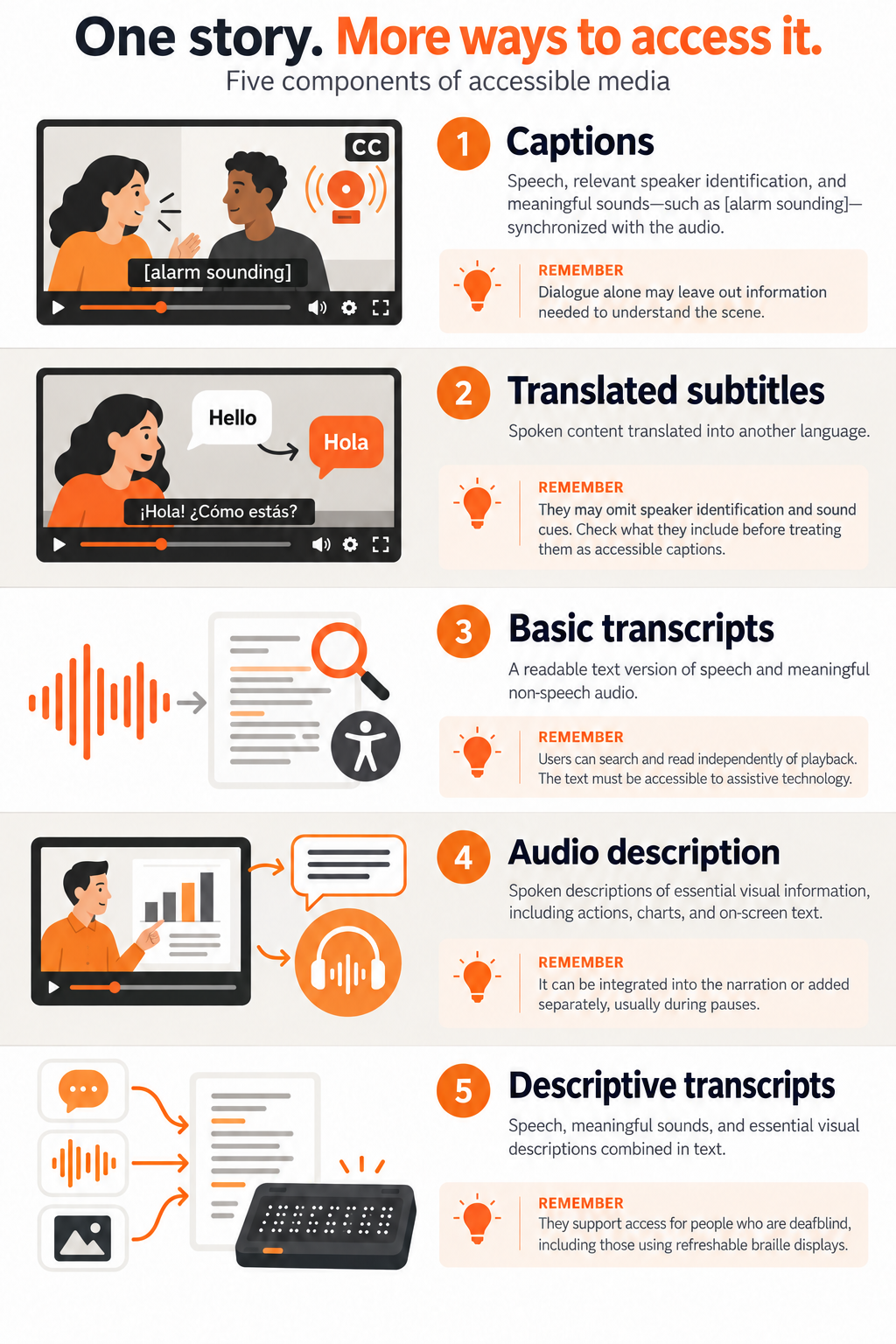
Figure 1: 5 components of accessible media
| Check what a format communicates, not just what the file is called |
3. Assess the Recording Before Estimating the Work
Two archived lectures may run for the same hour yet need very different remediation. One has clear narration and orderly discussion. The other has overlapping voices, distorted audio, and slides the speaker never explains.
The recording’s age alone tells you little about the work ahead. Assess the barriers within it.
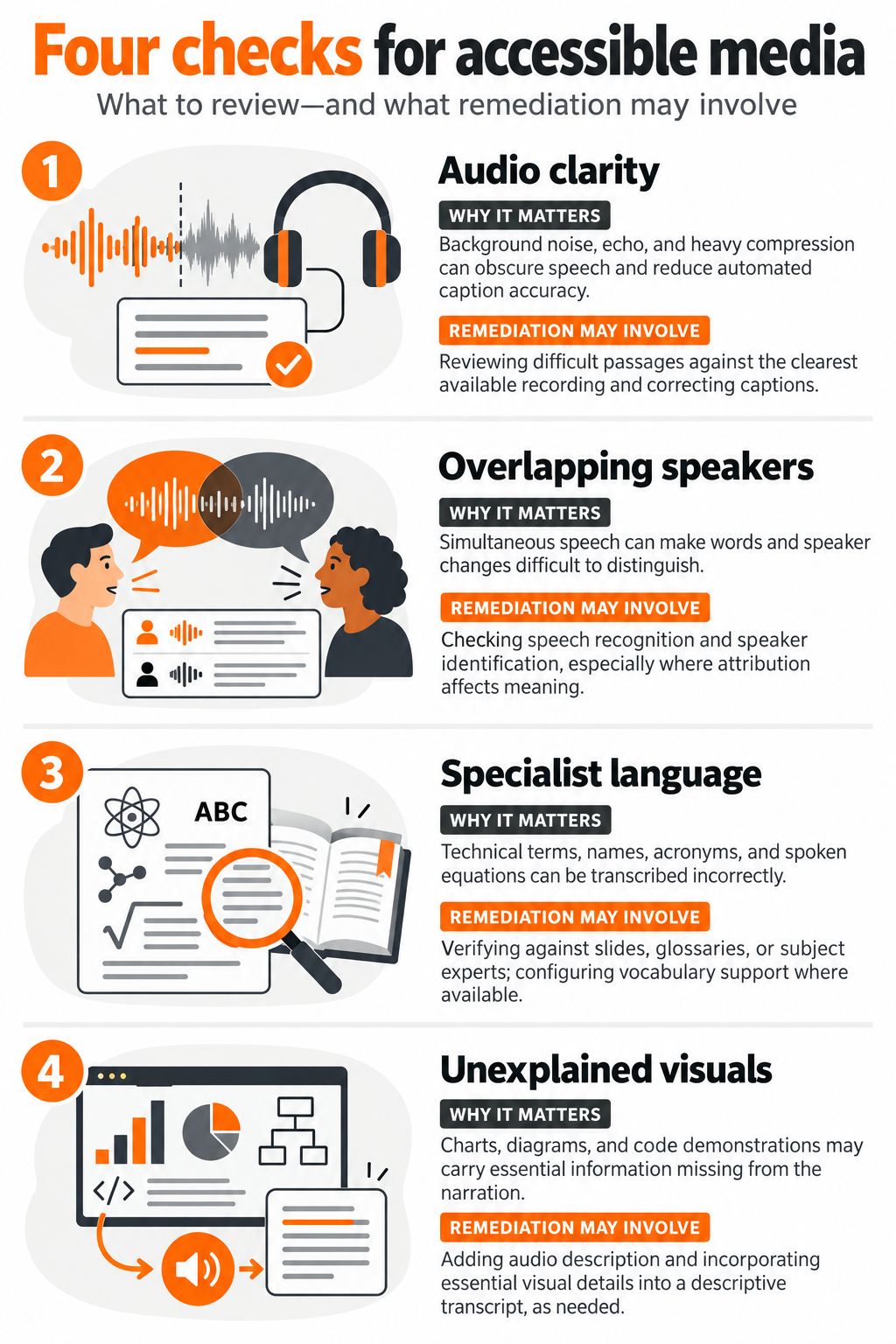
Figure 2: From unclear audio to unexplained visuals: four checks to identify accessibility gaps and guide remediation.
W3C guidance on visual description explains how planning descriptions during production can reduce later effort. For existing recordings, the available pauses, source materials, and player capabilities help determine the approach.
| Assess the barriers in the recording before estimating the effort to fix them. |
Review representative samples across the collection before planning the workload. This helps identify which videos need straightforward corrections and which require more extensive description or specialist review.
4. Use AI to Draft. Let Experts Check the Details
An automated transcript can look convincing while getting a technical term, a decimal point, or the word “not” wrong. Those small errors can change the meaning of an explanation.
AI tools can speed up transcription and initial caption timing. Some can also propose visual descriptions, although these need careful checking for accuracy and relevance. W3C guidance on automated captions makes the central point clear: automated captions are insufficient unless their accuracy has been confirmed.
A practical workflow combines automated preparation with editorial judgment:
- Create the draft. Generate an initial transcript and caption timings from the best available recording.
- Verify meaning and timing. Check the words against the audio, confirm speaker identification, include meaningful sounds, and adjust synchronization. Use glossaries, slides, or subject experts to verify specialist terms, names, and numerical data.
- Review what the visuals communicate. Identify essential information missing from the narration. Prepare descriptions for audio delivery or inclusion in a descriptive transcript, as appropriate.
- Resolve uncertainty. Check AI-generated text and editorial additions against the source. Where speech is unclear or visuals are ambiguous, consult supporting materials or flag the uncertainty rather than guessing.
5. Every Word Captured. The Finding Still Missing.
Imagine a recorded climate research webinar. The presenter points to a chart and says: “The largest change appears in the final quarter, as you can see here.”
The automated captions capture every spoken word. Yet the presenter never identifies the variable, the values, or the period being compared. Someone listening without access to the slide hears that a change occurred but cannot understand the finding.
The missing information needs to be described: what the chart measures, the relevant comparison, and the values or trend needed to understand the result. That explanation can be incorporated into the narration or supplied through audio description.
W3C’s guidance for prerecorded video explains that WCAG Level AA requires audio description where essential visual information is not already conveyed in the audio. A descriptive transcript provides another way to access the content, including for people who are deafblind, but does not replace that Level AA requirement.
| Accurate captions cannot recover an explanation the presenter never gave. |
6. Can Viewers Actually Use the Player?
Accurate captions offer little help if viewers cannot turn them on. After remediating the content, test the player within the website or learning management system (LMS) where viewers will use it.
Use W3C’s media player guidance to inform these checks:
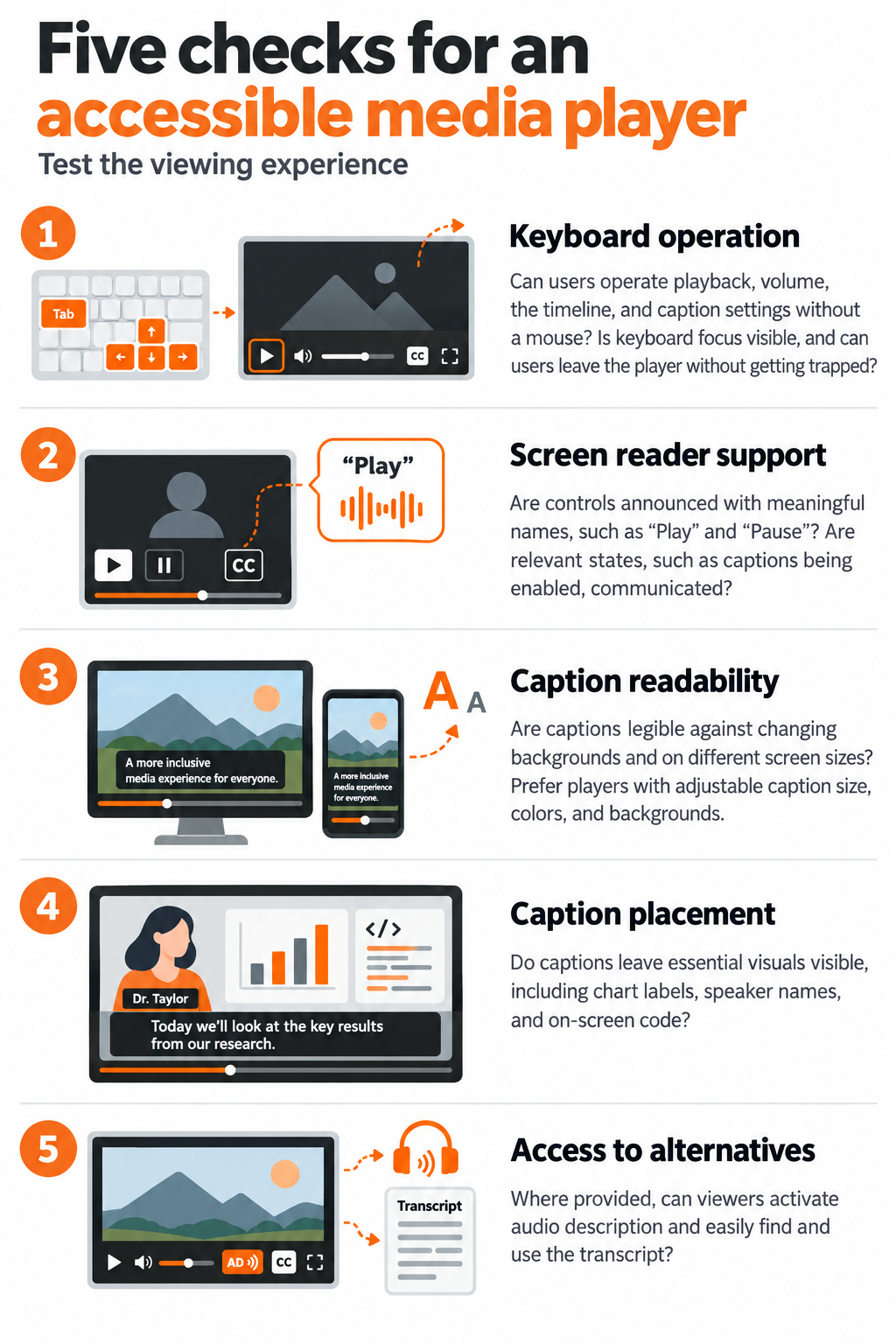
Figure 3: Five checks for media player accessibility: keyboard operation, screen reader support, caption readability, caption placement, and access to alternatives.
7.Turn the Video Backlog into a Delivery Plan
A large video archive becomes easier to manage when each item has a clear status, priority, and next step. Start with an inventory, then organize remediation around user needs, accessibility barriers, and applicable deadlines.
W3C’s accessibility planning guidance supports this approach: assign responsibilities, prioritize work, and track progress.
- Map the library: Record each video’s location, owner, purpose, usage, and known accessibility gaps. Note whether captions, transcripts, and descriptions are available and have been checked.
- Set priorities: Weigh direct access requests, the severity of barriers, essential training or course use, audience reach, and applicable deadlines. Low viewing numbers alone should not determine priority.
- Schedule and verify: Assign an owner and target date to each batch. Check the remediated content and its playback experience before marking the work complete.
- Review the queue: Update priorities as requests, usage, and content needs change. Assess older or specialist videos individually rather than excluding them solely because of age or audience size.
Publish an easy-to-find, accessible way to request help with any inaccessible video. Identify who handles requests, set response and delivery targets, and arrange timely alternative access while remediation proceeds.
| A place in the queue is a plan for repair. Viewers may still need access today. |
Apply accessibility checks to new videos before publication so the backlog does not continue to grow.
8. Make Accessibility Part of the Next Recording
Every new recording is an opportunity to prevent another round of avoidable fixes. Planning accessibility before filming can reduce the work needed later, as W3C’s media production guidance explains.
- Check the sound before recording: Use suitable microphones, reduce background noise and room echo, and record a short test to confirm that speech is clear.
- Build essential visuals into the explanation: Prepare presenters to explain the chart’s finding, identify relevant on-screen text, and describe actions needed to follow a demonstration.
- Give editors useful source materials: Share scripts, slide decks, speaker names, and terminology lists before post-production begins. Use them to support verification, then check captions and transcripts against the final recording.
- Plan accessibility deliverables early: Assign responsibility, time, and budget for captions, transcripts, and visual descriptions as needed. Include a final content and playback check before publication.
Track the proportion of published videos that have passed defined accessibility checks, outstanding barriers, and hours spent correcting avoidable production issues. Review these measures alongside production volume to identify where teams need better preparation or support.
Start with One Video
Choose one high-use video—or one with a reported accessibility barrier—and assess it from content to playback. Are the captions accurate? Is essential visual information described? Can viewers operate the player without a mouse?
Use what you find to set the next priorities for your library.

Straive helps clients operationalize the data> insights> knowledge> AI value chain. Straive’s clients extend across Financial & Information Services, Insurance, Healthcare & Life Sciences, Scientific Research, EdTech, and Logistics.


