
Posted on: November 11th 2026
Imagine a student enrolling in a course with a fully accessible learning management system or a customer navigating a compliant web portal. The page layout works seamlessly with screen readers, color contrast meets standards, and video content is fully captioned.
However, that seamless experience breaks down the moment they open a downloaded file. Suddenly, they are faced with an unformatted Word document with no heading structure, an Excel sheet that relies entirely on color coding, or a PPT whose elements are read completely out of order.
Every platform relies on supporting Microsoft Office files—from Word exercise guides to PowerPoint presentations and Excel financial models. When these documents are inaccessible, users who rely on assistive technology hit immediate challenges that block them from learning, working, or completing essential tasks.
Yet these supporting assets are too often treated as an afterthought during compliance audits. International standards, such as the W3C WCAG2ICT Guidance, clarify that non-web documents must meet the same accessibility standards as the primary platform hosting them. A fully compliant portal simply cannot compensate for an attachment that a user cannot navigate, read, or complete.
Identify the Files That Users Actually Depend On
Ancillary content includes all supporting documents provided alongside a core platform, publication, or product. Because these files are often uploaded across multiple channels, publishers frequently lose track of how many attachments exist and who maintains them.
Common Examples Across Sectors
- Higher Education & Publishing: Instructor guides, student exercise worksheets, course syllabi, lab manuals, and supplemental PDF downloads.
- Corporate & Associations: Onboarding slide decks, compliance policy manuals, interactive training workbooks, and reporting spreadsheets.
Step-by-Step Audit Strategy
To bring untracked files into compliance, content teams must first audit their digital inventory:
- Inventory Across Repositories: Map out every file location across learning management systems (LMS), content management systems (CMS), cloud storage (OneDrive, Google Drive, SharePoint), and internal staff portals.
- Identify Active Content: Filter out archived or deprecated files to prioritize remediation on live, frequently downloaded materials.
- Establish Explicit Ownership: Assign clear accountability for each document set so remediation persists through future content updates and software releases.
Once you have mapped your active inventory and established ownership, the work shifts from governance to direct remediation. Because text documents form the foundation of most instructional and operational resources, starting with Microsoft Word provides the clearest entry point for establishing accessible authoring practices.
Make Word Documents Easy to Navigate
Visual formatting alone does not create document structure. A phrase rendered in bold, 18-point font looks like a heading to a sighted reader, but assistive technologies like screen readers recognize it only as standard paragraph text.
Key Word Document Remediation Steps:
- Meaningful Heading Styles: Apply native heading styles (Heading 1, Heading 2) in a strict hierarchical sequence to enable quick navigation.
- Descriptive Hyperlinks: Replace raw URLs or non-specific labels like “click here” with actionable anchor text that explains the destination (e.g., “Review the 2026 Accessibility Guidelines”).
- Contextual Image Descriptions: Draft alt text that conveys the purpose of an image relative to the surrounding text, rather than merely describing its visual appearance.
- Accessible Tables: Ensure tables have defined header rows, logical left-to-right grid structures, and no merged cells that break tab order.
Let Screen Readers Tell the Whole Slide Story
A PowerPoint slide can appear clean and organized visually while presenting a completely chaotic reading sequence to screen reader users. This happens because screen readers process slide elements in the order they were added to the slide layer rather than their visual position.
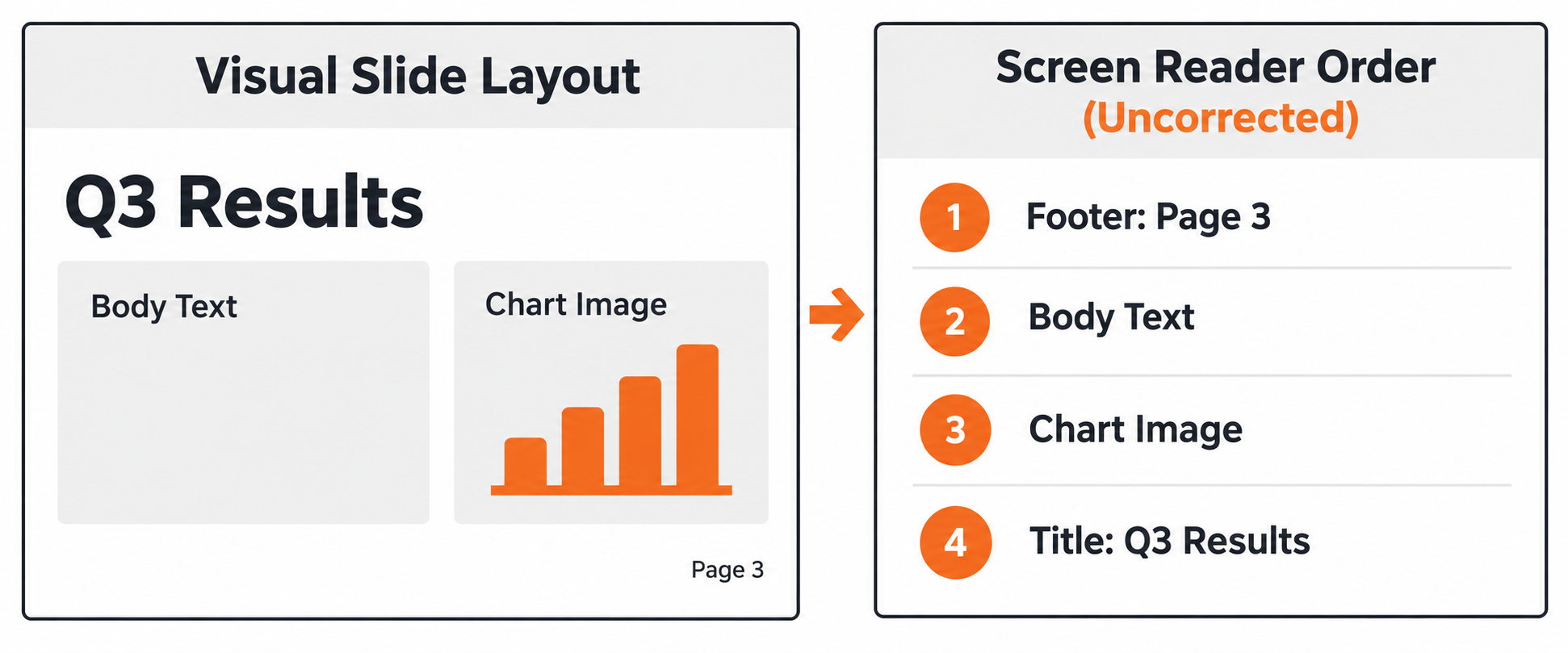
Figure 1: A slide can look organized while its screen reader order tells a different story.
Key PowerPoint Remediation Steps:
- Unique Slide Titles: Ensure every slide has a distinct, readable title so users navigating via list views can identify content easily.
- Reading Order Pane: Use PowerPoint’s Selection Pane to sequence objects so screen readers process titles, body text, graphics, and callouts in a logical reading order.
- Chart & Graphic Descriptions: Provide detailed descriptions or summary tables for complex charts, diagrams, and data visualizations.
- Embedded Media: Verify that video or audio assets embedded within slides include closed captions, transcripts, and audio descriptions.
Make Excel Accessible and Functional
Spreadsheets present a unique remediation challenge because they are functional tools, not static documents. Remediation must preserve formulas, sheet relationships, and interactive calculations while ensuring accessibility. Achieving both requires balancing technical markup with functional validation.
Key Excel Remediation Steps:
- Clear Sheet & Table Names: Replace default labels (e.g., Sheet1, Table1) with distinct, meaningful names that indicate the contents.
- Defined Table Headers: Explicitly declare header rows and avoid multi-level or split headers that prevent assistive tools from associating data cells with their labels.
- Alternatives to Color-Only Encoding: Never rely solely on cell color fill (such as red/green status highlights) to convey information. Combine color coding with text indicators or symbols (e.g., “Pass/Fail”).
- Functional Integrity Checks: After structural modifications, re-verify all active formulas, cell links, and macros to ensure sheet functionality remains completely intact.
Validate Meaning as Well as Technical Checks
Automated accessibility checkers—including built-in checkers like Microsoft’s Accessibility Checker—are valuable for finding low-hanging fruit, but they cannot evaluate context or utility. For instance, an automated checker confirms whether an image has alt text, but it cannot judge whether that text accurately conveys the image’s meaning. Achieving true compliance requires a multi-layered testing approach that pairs automated flags with human expertise.
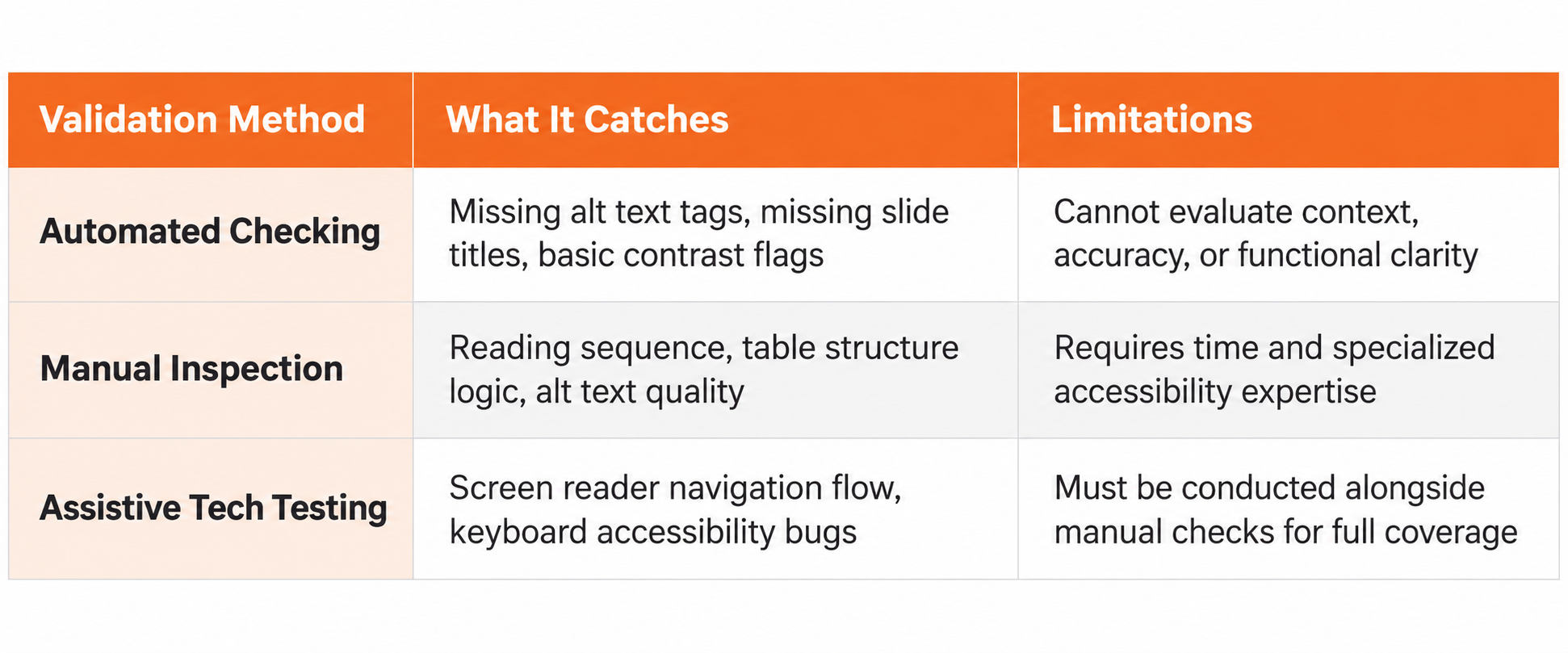
Figure 2: What automated checks, manual inspection, and assistive technology testing reveal about accessibility, and where each has limits.
| Note on Exported PDFs: Remediating your source Microsoft Office files is essential, but if you distribute them as PDFs, the work is only half done. Document tagging, object reading order, and structural metadata do not always transfer seamlessly during export. As a result, the final PDF requires its own dedicated validation step before publication. |
Stop Accessibility Errors at the Source.
Remediating individual files resolves immediate barriers, but preventing recurring errors requires addressing authoring workflows at the source. According to the U.S. General Services Administration (GSA), embedding accessibility into initial content creation reduces long-term remediation costs and speeds up publication timelines.
- Standardized Accessible Templates: Build pre-formatted Microsoft Office templates complete with high-contrast color palettes, default heading structures, and pre-configured table styles. Using official Microsoft Accessibility Best Practices ensures these defaults remain intact when shared across teams.
- Author Guidance & Training: Equip content creators with straightforward authoring habits—such as using native list tools instead of manual hyphens—to minimize structural errors during initial drafting.
- Review Checkpoints: Integrate formal accessibility QA steps, using established frameworks like the HHS 508 Checklists, into existing editorial and publication review cycles.
- Version Control: Maintain centralized, remediated source files in secure cloud repositories to ensure future updates carry forward without losing accessibility metadata or structural tags.
Every Format Has Its Own Accessibility Challenges
Consider a standard educational resource package containing three core items:
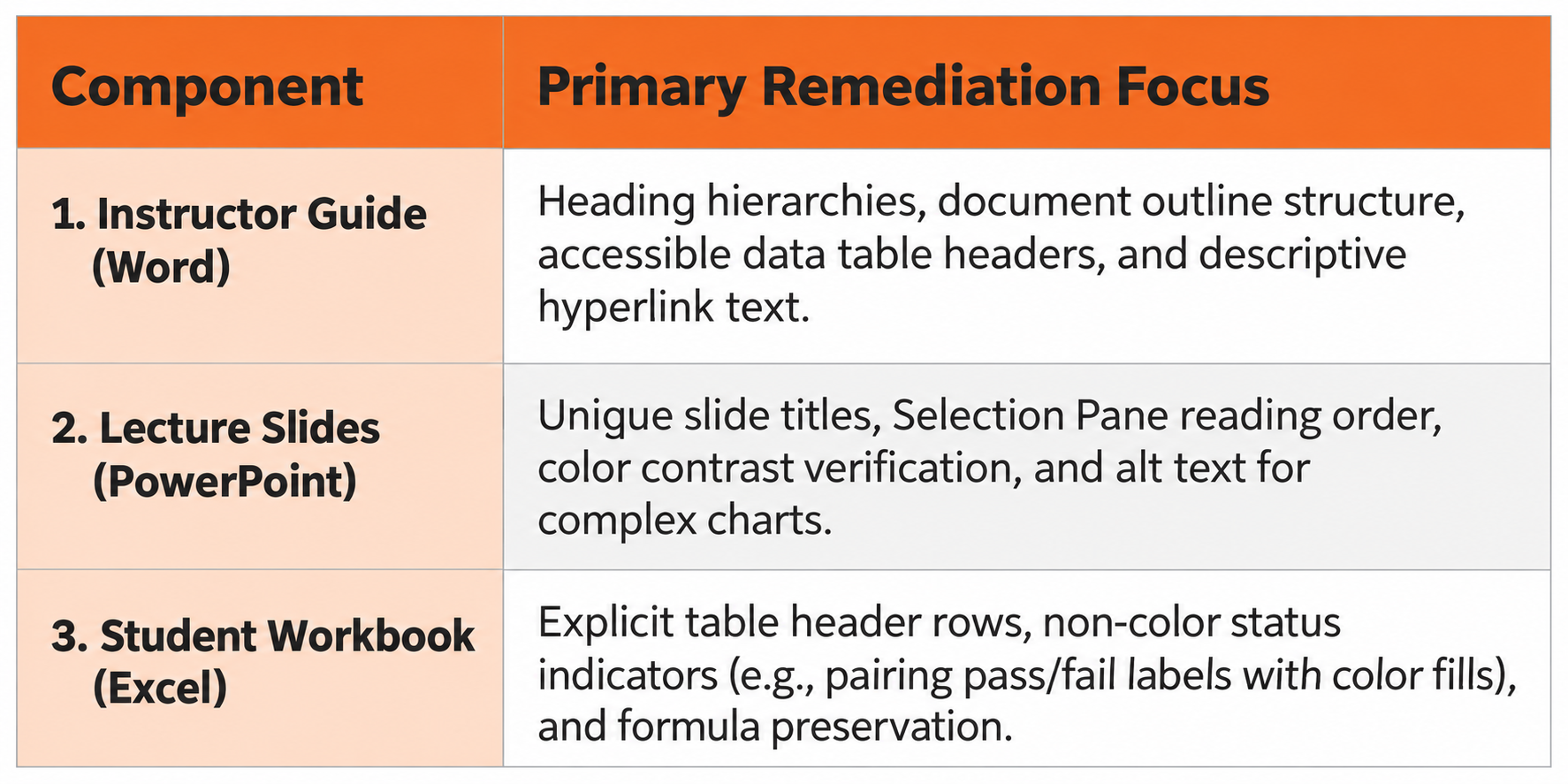
Figure 3: Key accessibility remediation priorities for instructor guides, lecture slides, and student workbooks across Word, PowerPoint, and Excel.
Each file type requires distinct remediation methods and specialized QA checks before distribution—demonstrating why a broad, one-size-fits-all approach fails.
For enterprise repositories and large-scale educational publishing programs, managing these file-specific requirements across thousands of assets often demands dedicated operational support. Specialized partners like Straive help organizations bridge this gap by combining AI-driven automation with expert subject-matter review to remediate complex Word, PowerPoint, Excel, and PDF collections at scale without compromising content integrity.
Take the Next Step
Focusing exclusively on web pages and application interfaces leaves significant accessibility gaps in the supporting files your users rely on every day.
Call to Action: Audit the supporting files behind one critical user journey in your organization today. Identify where Word, Excel, or PowerPoint attachments create unnecessary friction, and establish a plan to build native accessibility into every document you publish.

Straive helps clients operationalize the data> insights> knowledge> AI value chain. Straive’s clients extend across Financial & Information Services, Insurance, Healthcare & Life Sciences, Scientific Research, EdTech, and Logistics.


